1. Home
  2. Products
  3. OR Integration
  4. CureLink | Surgical Recording, Digital Negatoscope & OR Telemedicine
  5. CureLink OR Software Platform
CureLink | Surgical Recording, Digital Negatoscope & OR Telemedicine

CureLink OR Software Platform

Telemedicine System · OR Application · Management Panel · 4-Channel HDMI Viewer · MultiView Layouts · Recording · Live Streaming · Video Call · HIS Integration

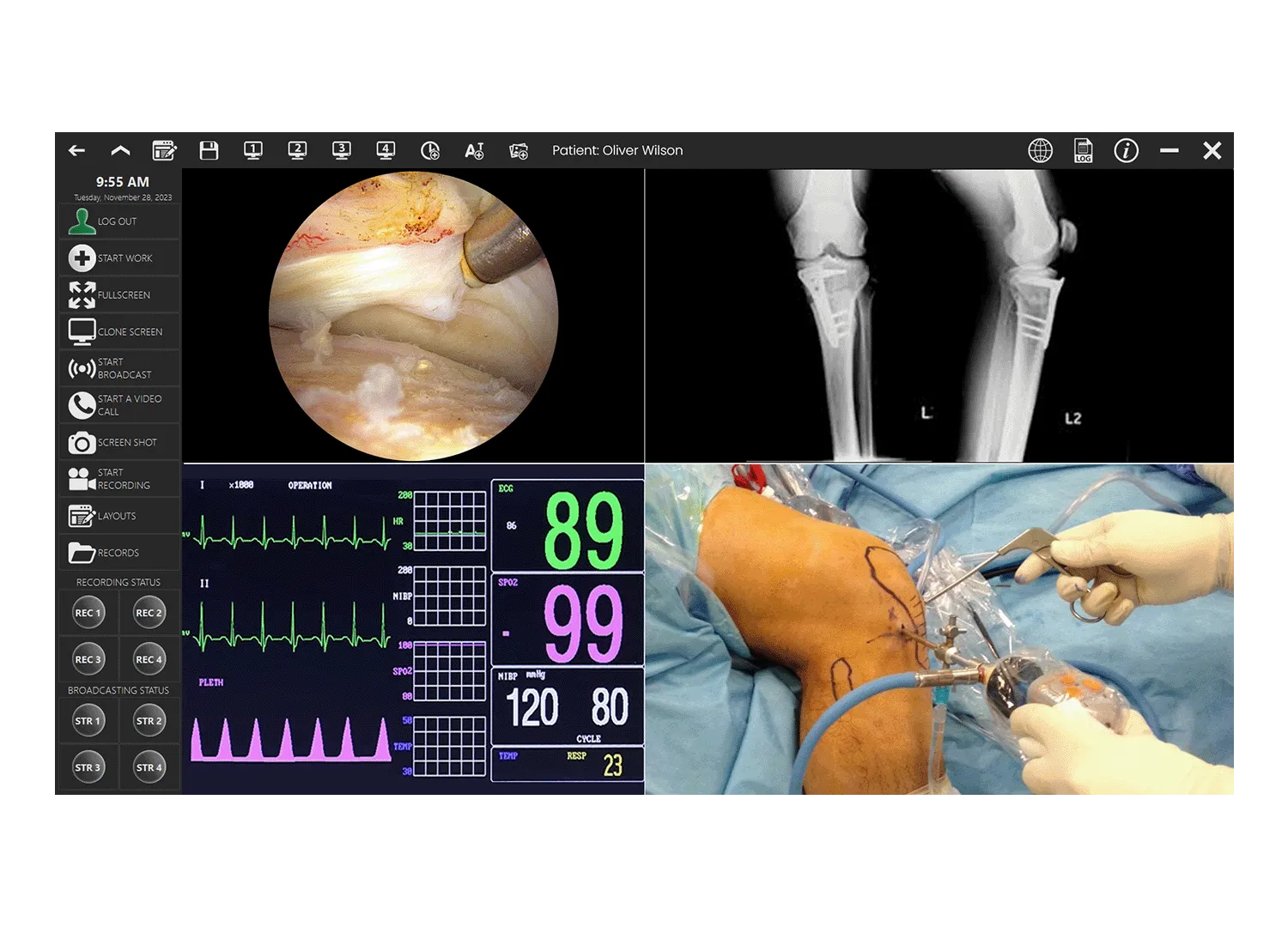
CureLink is a two-component clinical software platform designed to run on CureVision OR consoles (VPC-240C, GP-449) in the operating room. The OR Application provides real-time, multi-channel surgical image viewing, flexible layout management, per-channel recording and live streaming, and direct HIS connectivity — all from the OR console display.

The web-based Management Panel gives administrators and remote observers secure access to all OR rooms, live broadcasts, video calls, user management, and operation records from any browser on the hospital network.

CureLink OR Application auto-starts at Windows boot and is designed to remain open continuously — maintaining live HIS data exchange at all times. The application runs alongside PACS and other clinical software without interference — it can be minimised to the system tray while other applications run in the foreground. Management Panel is accessible from any browser on the hospital network — no client installation required. Supports EN, TR, ES, PL, and FR languages.
Two Components

01

CureLink OR App

Desktop app on VPC-240C Runs on OR console/display
02

Management Panel

Web server — any browser Remote admin & telepresence

Input Sources

HDMI (up to 4 channels)
SDI (via capture card)
DVI-D / DVI-A / RGB
S-Video / Component
Surgical lamp cameras
Auto-detection mode

HIS Integration

Filter by modality, patient, date
Manual work creation
Patient-linked recording

Integration, Archiving & Collaboration

01

Worklist

HL7 and/or DICOM worklist retrieved at the start of each procedure, with metadata imported automatically and manual entry for emergencies. Username, patient name and surgery date shown in the screen header.
02

Recording

4 channels simultaneously at Full HD 1080p60, with user-configurable resolution and frame rate. Dedicated per-channel soft buttons and status indicators for recording and for broadcast; video calls run from a separate control. Login required before recording, broadcasting or screenshots.
03

Archiving

On ‘complete work’, recordings, screenshots and annotations are transferred in the background with worklist metadata to PACS or VNA as DICOM video (MPEG-4 AVC/H.264), or exported to a MAM system — without blocking the next procedure. Option: queued transfers from several procedures, automatic resume after a network interruption, and local deletion only after confirmed transfer (2 TB local buffer per OR).
04

Collaboration

Option: Zoom / Microsoft Teams compatibility; drawing and annotation on the broadcast video by video-call participants, kept or cleared automatically after a set time and captured in screenshots; session notes.
05

Users & Guests

Registered users with role-based permissions, and session guests invited by email to a specific channel or video call — Private or Public link, with validity start and end dates, no account or app needed.
06

Server

Option: on-premise server on Linux (e.g. Ubuntu) with no additional licence cost; HTTPS with the hospital’s certificate and a shared domain with the video routing interface; LDAP / single sign-on.
07

Audio

Two adjustable audio sources per channel (embedded video audio and console microphone). Option: dedicated 2×10 W / 8 Ω speaker output for ceiling or wall speakers, and a wireless hands-free headset microphone.

Technical specifications

Download full datasheet ↓
View full specifications · 1 groups, 7 rows

Image Viewer

Input ChannelsUp to 4 simultaneous HDMI/video inputs displayed on screen
Supported SourcesHDMI · SDI · DVI-D · DVI-A (RGB) · S-Video · Component (YCbCr) · AUTO
Channel SelectionClick on channel image to select — blue highlight = active selection
Show / Hide ChannelTop menu button · Right-click menu · ALT-H shortcut
Full ScreenDouble-click · ALT-F · Right-click — Fullscreen
Clone ScreenMirror channel to second display — ALT-T · Right-click — Clone Screen
Surgical Lamp CameraCameras in surgical lamps connected directly to image inputs

Downloads

Next step

Support

Please contact us for information about the products or for technical support.

✓ Reply from an engineer within 2 business days ✓ Configuration & integration advice ✓ Datasheets and certificates on request
Interested product CureLink OR Software Platform
We only use your details to answer this request.

Request Product Information